
- Name
- Tison Brokenshire
Updated on
How to Photograph Whiteboard Notes Clearly (Every Time)
You just finished a critical brainstorming session. The whiteboard is covered in diagrams, action items, and key decisions. You pull out your phone, snap a photo, and walk away confident. Later, you open that photo and discover washed-out text, unreadable corners, and a bright glare cutting across the most important section. The information you needed is gone.
This happens constantly in classrooms, meeting rooms, and workshops. Poor whiteboard photos cost teams real information. A single missed action item from a sprint planning session can derail a week of work. A student who cannot read the lecture diagram fails to connect the concept during review. The whiteboard held the answer, and the camera failed to preserve it.
The fix is straightforward. With the right positioning, lighting awareness, and camera settings, your phone can capture whiteboard notes that are sharp, readable, and ready for digital conversion. This guide walks through each step.
Quick Reference: Whiteboard Photography Checklist
Use this table as a fast reference before your next capture.
| Step | Action | Why It Matters |
|---|---|---|
| Position | Stand centered, 3-5 feet back | Reduces perspective distortion |
| Angle | Keep phone parallel to the board | Prevents trapezoid warping |
| Flash | Turn it off | Eliminates direct glare |
| Lighting | Face the board with light behind you | Creates even illumination |
| Focus | Tap the board on screen to lock | Ensures text stays sharp |
| HDR | Enable HDR mode | Balances bright board and dark text |
| Resolution | Use highest available (12MP+) | Preserves fine marker strokes |
| Sections | Shoot large boards in overlapping parts | Keeps detail in every zone |
| Review | Zoom in immediately after shooting | Catches problems before erasing |
| Convert | Upload to an AI tool like Pixno | Turns the photo into searchable notes |
Step 1: Position Yourself Correctly
Most whiteboard photos fail before the shutter button is pressed. The photographer stands too close, too far to one side, or at an odd height. These positioning errors create perspective distortion, where straight lines on the board appear curved or tapered in the photo.
Stand directly centered on the board. Find the midpoint of the written content and align yourself with it. Step back far enough that the entire board fits in the frame with a small margin on each side.
Hold your phone at board center height. If the whiteboard content sits at chest to head height, hold the phone near your chest rather than above your head. Shooting from above or below introduces vertical keystone distortion, where the top or bottom of the board appears wider than the other end.
Keep the phone parallel to the board surface. Imagine the board and your phone screen as two parallel planes. The closer they are to perfectly parallel, the less warping appears in the final image. Tilt creates a trapezoid shape that makes text on one side smaller and harder to read.
For large whiteboards that span an entire wall, capture the board in two or three overlapping sections instead of stepping far back and losing detail. Overlap each section by about 20 percent so no content falls between frames.
Step 2: Control Lighting and Glare
Glare is the single biggest destroyer of whiteboard photos. It appears as a bright white patch that completely erases whatever text or drawing sits beneath it. Glare happens when a light source reflects off the glossy whiteboard surface directly into your camera lens.
Turn off your camera flash immediately. Flash aimed at a reflective whiteboard surface will create a large circular glare spot right in the center of your photo. This is the most common mistake and the easiest to fix.
Identify the overhead light positions. Look up and notice where the ceiling lights sit relative to the board. The reflection angle follows a simple rule: the angle of incidence equals the angle of reflection. If a light is directly above and in front of the board, standing directly under that light puts you in the glare zone.
Shift your position one to two steps to the side. A slight offset of 5 to 10 degrees from center is usually enough to move out of the primary reflection path. You trade a tiny amount of perspective accuracy for a dramatic reduction in glare.
Use your body to test. Before shooting, look at the board through your phone screen. If you see any bright spots, step sideways until they disappear. This takes three seconds and saves the entire photo.
In rooms with multiple light sources or large windows, glare can appear in several places at once. In these cases, take two photos from slightly different positions and combine the best sections from each.
Step 3: Optimize Phone Camera Settings
Default camera settings work well for general photography but need adjustment for whiteboard captures. The high contrast between a white board and dark marker ink confuses automatic exposure systems.
Tap the whiteboard text to set focus and exposure. Most phone cameras let you tap the screen to choose the focus point. Tap directly on a section of text. This tells the camera to prioritize sharpness on the marker strokes and to set exposure based on the board surface brightness.
Enable HDR mode. High Dynamic Range mode takes multiple exposures and combines them. This helps preserve detail in both the bright white board areas and the darker marker ink. On most phones, HDR is available in the camera settings or as a toggle on the main screen.
Set resolution to maximum. Use the highest resolution your phone supports. Whiteboard marker strokes are thin, and low resolution can blur them into illegibility. A 12MP image gives you room to crop and zoom without losing sharpness.
Turn on grid lines. Most camera apps offer a rule-of-thirds grid overlay. Use the grid lines to align the top edge of the whiteboard with a horizontal grid line. This visual guide helps you keep the phone level and parallel to the board.
| Setting | Recommended Value | Purpose |
|---|---|---|
| Flash | Off | Prevents direct glare |
| HDR | On | Balances exposure across the frame |
| Resolution | 12MP or higher | Preserves fine text detail |
| Focus | Tap on text area | Locks sharpness on content |
| Grid lines | On | Helps align phone with board edges |
| Timer | 2 seconds (optional) | Reduces hand shake on press |
If your phone has a manual or pro mode, set ISO between 100 and 400 to reduce noise, and use a shutter speed of at least 1/60 second to prevent motion blur from hand shake.
Step 4: Frame and Capture the Shot
With position and settings locked, the actual capture takes seconds. Follow these steps for a clean shot.
Include the full board with a small border. Leave a thin margin of wall or frame around the whiteboard edges. This margin helps auto-crop tools detect the board boundaries later. Cutting off edges means losing content that you cannot recover.
Shoot straight-on for single boards. A perpendicular angle produces the least distortion. If you shifted slightly for glare avoidance, keep the shift under 10 degrees.
Use burst mode for in-progress boards. If someone is still writing or erasing, hold the shutter to take a burst of three to five frames. Pick the sharpest one later. Moving hands and arms can block content in a single frame.
Take one shot per board state. If content gets erased and replaced during a meeting, capture each state before the eraser arrives. Whiteboard content is ephemeral. Once erased, it is gone permanently.
Review immediately. After shooting, pinch to zoom on key sections of the photo. Check that text is readable and that no glare patches cover important content. If anything looks off, reshoot while you still have access to the board. This five-second check prevents the frustration of discovering problems hours later.
Step 5: Clean Up Your Whiteboard Photos
A raw whiteboard photo is usable, but a few quick edits make it significantly more readable and easier to share.
Crop to the board edges. Remove the surrounding wall, frame, and any distracting objects. A tight crop keeps the focus on the content and reduces file size.
Increase contrast. Use your phone's built-in photo editor to bump contrast by 20 to 30 percent. This darkens the marker ink and brightens the white background, making text pop. Avoid over-saturating, which can introduce color artifacts.
Straighten if needed. If the photo has a slight tilt, use the rotation tool to align the board edges with the photo frame. Most phone editors allow fine rotation adjustments in one-degree increments.
Apply a document filter if available. Some camera apps and gallery editors include a "Document" or "Whiteboard" filter that automatically adjusts contrast, brightness, and sharpness for text-heavy images. Apple's Notes app, Google Photos, and Microsoft Lens all offer this feature.
These edits take under a minute and transform a decent photo into a professional-grade capture that is easy to read on any screen.
Step 6: Convert Whiteboard Photos to Digital Notes
A clear whiteboard photo solves the capture problem, but the information is still locked inside an image file. You cannot search it, copy-paste from it, or integrate it into your notes app. The next step is converting that photo into structured digital text.
Traditional OCR tools can extract raw text from whiteboard photos, but they struggle with handwriting, diagrams, arrows, and the spatial relationships that give whiteboard content its meaning. A flowchart on a whiteboard is not just words. It is words connected by arrows in a specific sequence. Standard OCR loses that structure.
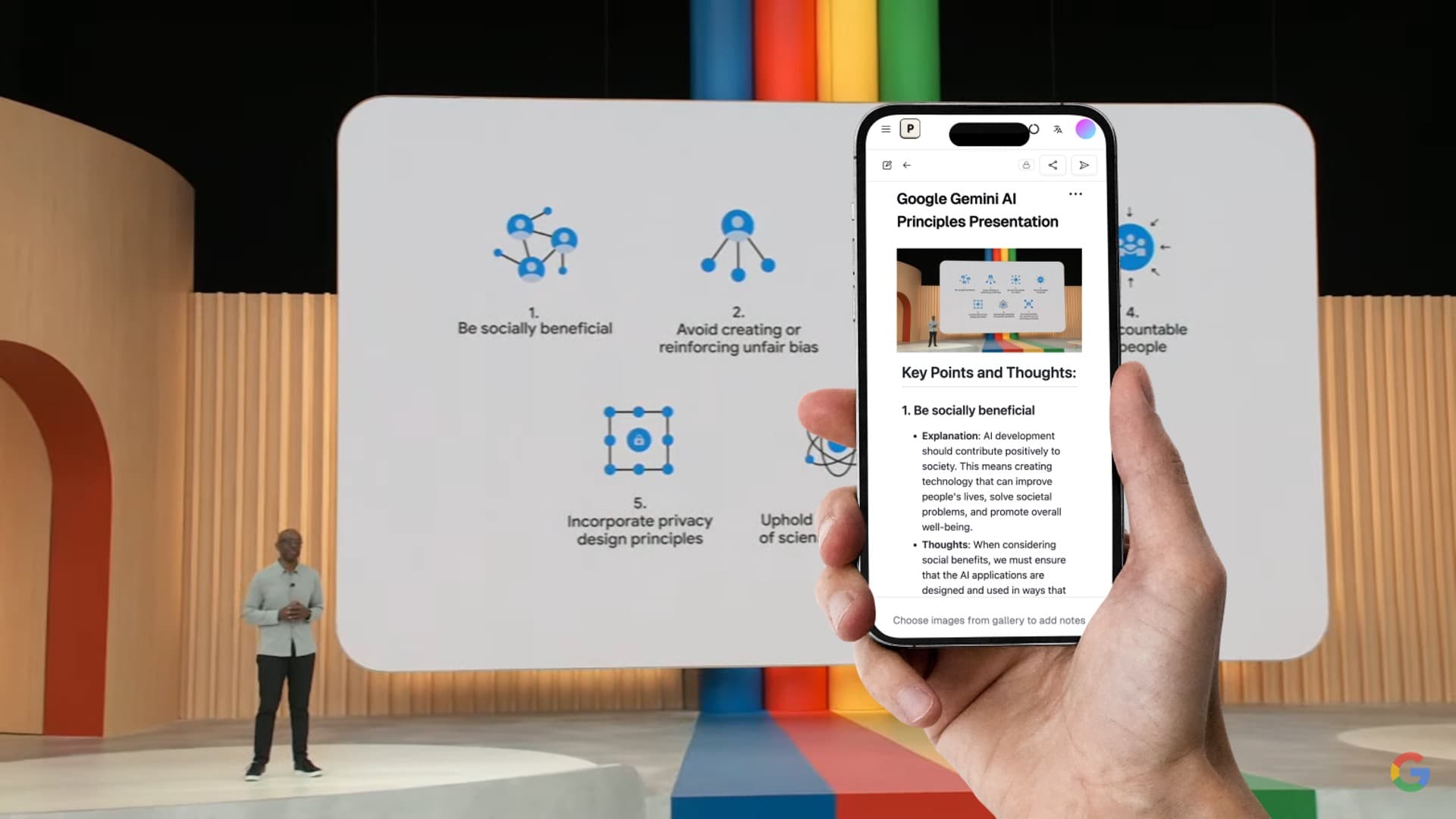
AI-powered tools solve this problem. Pixno (opens in a new tab) uses vision language models to interpret whiteboard photos at a deeper level than basic text extraction. It reads the text, understands the spatial layout, identifies diagrams and their relationships, and produces structured notes with headings, bullet points, and labeled diagram descriptions.
How to convert whiteboard photos with Pixno:
- Open Pixno (opens in a new tab) on your phone or desktop.
- Upload the whiteboard photo directly or drag it into the workspace.
- Pixno's AI analyzes the image, recognizing text, diagrams, tables, and hand-drawn elements.
- Review the generated notes. Text appears as structured content with headings and lists. Diagrams are described with labeled elements.
- Export to your preferred format: Markdown, DOCX, Notion, Obsidian, or plain text.
The entire process takes under a minute per photo. For meetings with multiple board states, upload all photos in sequence to get a complete set of organized notes.
Turn photos to notes and knowledge base
Pixno is your AI note taking assistant that turn photos, audio, docs into well structured text notes and create your personal knowledge base.
Get StartedCommon Whiteboard Photography Mistakes
Even with good technique, specific errors crop up repeatedly. This table covers the most frequent problems and their fixes.
| Mistake | What Happens | Fix |
|---|---|---|
| Flash left on | Bright circular glare in center of photo | Turn off flash in camera settings |
| Standing too close | Edges of board cut off, barrel distortion | Step back until full board fits with margin |
| Shooting at an angle | Trapezoid distortion, one side smaller | Stand centered, keep phone parallel to board |
| Phone tilted up or down | Vertical keystone distortion | Hold phone at board center height |
| Low resolution setting | Thin marker strokes blur into noise | Set camera to maximum resolution (12MP+) |
| Not reviewing the shot | Discover glare or blur hours later | Zoom in and check immediately after capture |
| Photographing through glass | Reflections and double images | Move to a position without glass between you and board |
| Wearing bright clothing | Your reflection appears on the board surface | Wear dark, non-reflective clothing |
| Waiting too long to shoot | Content gets erased before capture | Photograph each board state as it is completed |
| Ignoring mixed lighting | Multiple glare spots from different sources | Take two shots from different angles and combine |
FAQ
What are the best phone camera settings for whiteboard photos? Turn on HDR mode, set resolution to the highest available (12MP or above), and tap the whiteboard area on screen to lock focus and exposure. Disable flash entirely. If your phone supports manual mode, set ISO between 100 and 400 and use a fast shutter speed to prevent blur.
How do I avoid glare on whiteboard photos? Turn off your camera flash and avoid standing directly under overhead lights. Move one to two steps to the side so the light source is not reflecting off the board toward your lens. A slight angle of 5 to 10 degrees from center eliminates most glare while keeping text readable.
Can you convert whiteboard photos to text? Yes. AI-powered tools like Pixno use vision language models to read whiteboard photos and convert the content into structured digital notes. The output preserves headings, bullet points, diagrams, and even rough sketches as labeled descriptions.
What is the best app for capturing whiteboard notes? Pixno (photes.io) is the most capable option for converting whiteboard photos into organized notes. It uses AI to interpret both text and visual elements like diagrams, flowcharts, and tables. Microsoft Lens and Google Keep also offer basic whiteboard scanning, but they lack AI-powered structure recognition.
How do I photograph a whiteboard without reflection? Stand at a slight off-center angle rather than directly in front. Keep your phone close to chest height instead of raising it above your head. Wear dark clothing to reduce your own reflection. If the room has multiple light sources, position yourself so the lights are behind you but not directly over the board.
Related Reading
- How to Convert Handwriting to Text -- Turn handwritten notes into digital text using AI and OCR
- Best AI Note Taking Apps in 2026 -- Compare top AI tools for turning any content into notes
- AI Notes Generator: How to Auto-Generate Study Notes -- Automate study note creation with AI
- How to Turn PowerPoint Slides into Study Notes -- Three methods for converting slide decks to notes
- Note Maker AI: 7 Best Tools -- Compare AI tools that turn content into organized notes
- Spaced Repetition Schedule Cheat Sheet -- Every spaced repetition system compared in one reference
- Computer Science Course Roadmap for College Freshmen -- Plan your CS degree semester by semester