Office Management with MS Word: Features & Uses
Save and Save As Options in Document Management
1. Accessing the Save Tab
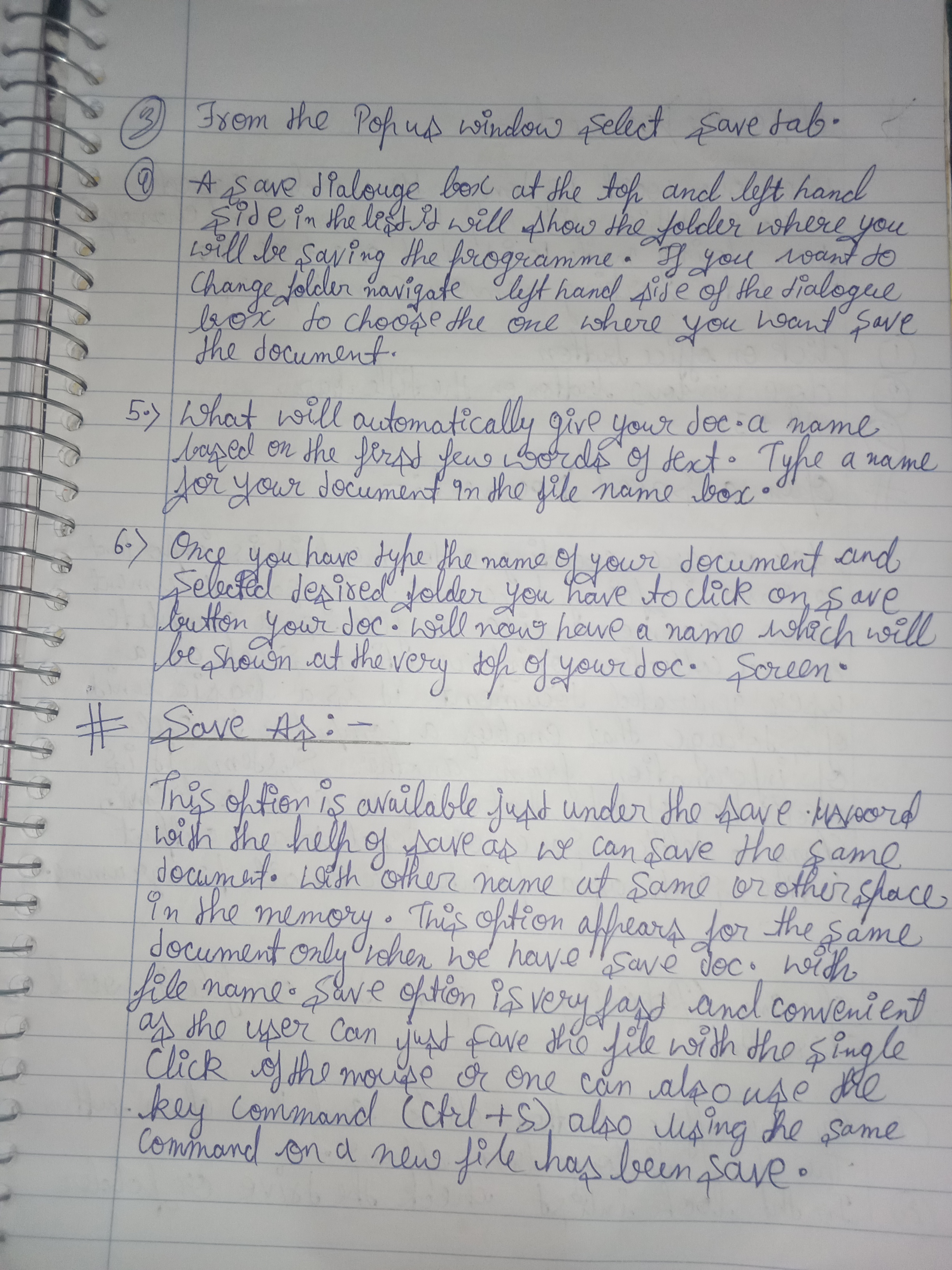
- Procedure: From the Pop-up window, select the Save tab.
- Insight: The Save operation is crucial for data retention and preventing loss. Always ensure you are saving your work frequently.
2. Understanding the Save Dialogue Box
- Description: A Save dialogue box appears at the top left-hand side of the screen.
- Functionality: It displays the folder where the program will save the document.
- Additional Information:
- You can navigate through this box to select different folders easily.
- The default folder is usually the last location where a document was saved, which can be changed for easier access in the future.
3. Naming Your Document
- Automatic Naming: The system will automatically suggest a name based on the first few words of the text.
- Tip: It is often a good practice to provide a meaningful name to your document that reflects its content, enhancing organization.
4. Selecting the Folder
- Procedure: After typing the document name, navigate to your desired folder and click the Save button.
- Note: The selected folder will be shown at the top of your document’s screen, allowing for a final check before saving.
5. Save As Option
- Definition: This option allows users to save a document under a different name or location.
- Importance: It is especially useful when creating multiple versions of a document or archiving past versions while maintaining the original file.
- Process: Accessible under the Save options with the following steps:
- Click on File.
- Select the Save As option.
Key Benefits of Save As:
- Multiple Formats: Allows saving the document in different formats (e.g., PDF, DOCX).
- Efficiency: Enables the user to save modifications without altering the primary file.
- Keyboard Shortcut: You can also use the command (Ctrl + S) for quick saving; however, for Save As, it’s typically (F12) in many applications.
6. User Accessibility
- Convenience: The Save option is user-friendly, allowing for simple clicks of a mouse or keyboard shortcuts.
- User Control: Offers flexibility in document management, ensuring users maintain control over file names and storage locations.
Summary
Understanding the save and save as functions is essential for effective document management. Regularly saving documents and using the Save As feature for version control are key practices in ensuring data integrity and ease of access.
Extended readings:
support.microsoft.com
Save a document - Microsoft Support
answers.microsoft.com
Save and save as dialog box has changed - Microsoft Community
answers.microsoft.com
When opening a document in Microsoft Word, a "Save As" box