GPT Image 2 for Students: Turn Notes Into Infographics, Diagrams, and Study Visuals
- Name
- Tison Brokenshire
Updated on
Updated April 21, 2026. OpenAI has released GPT Image 2, its new state-of-the-art image generation model. If you are searching for “ChatGPT Image 2,” this is the model name OpenAI uses in its developer docs: GPT Image 2.
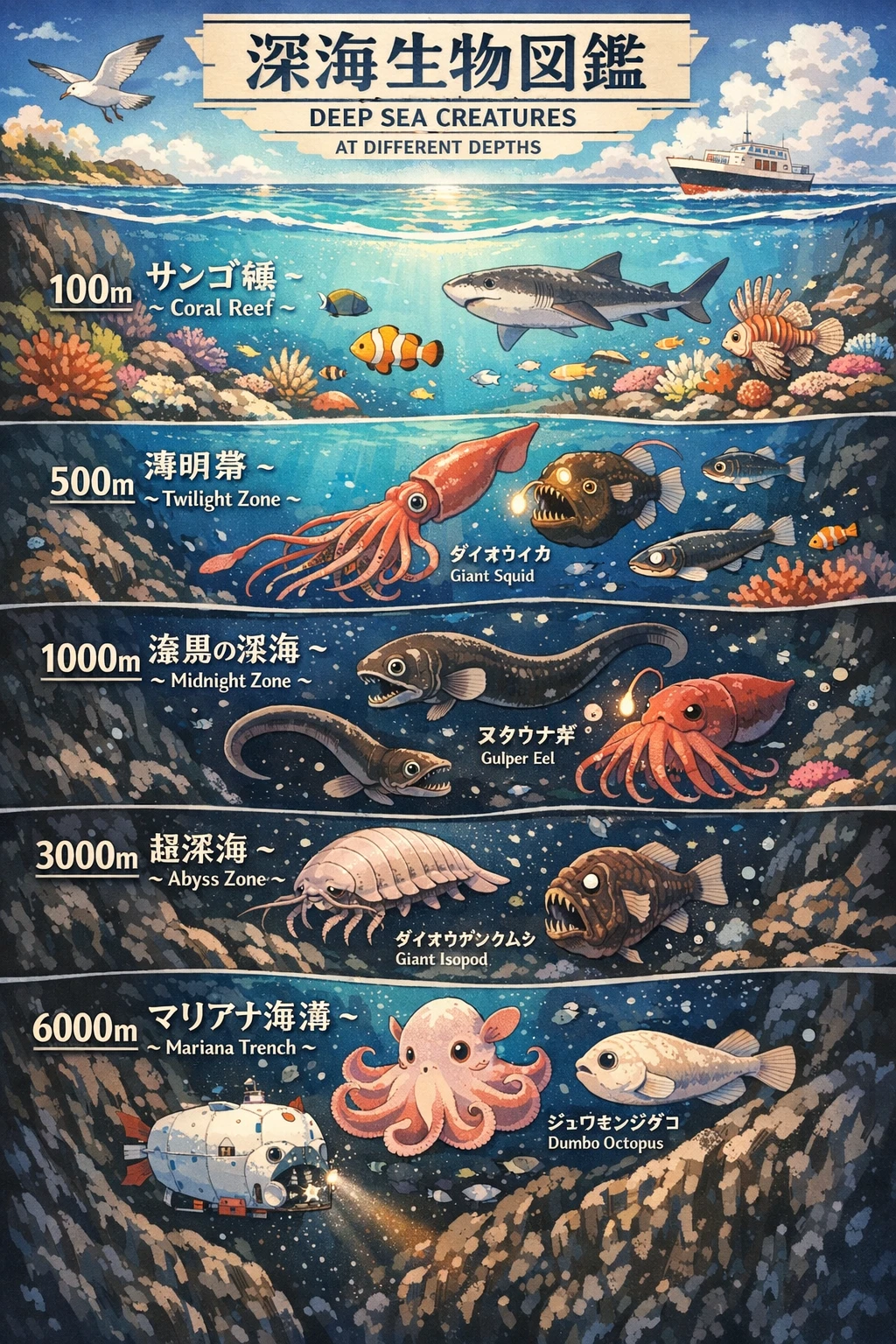
The important part for students is not just better pictures. GPT Image 2 can turn dense information into visual study material: infographics, labeled diagrams, concept maps, slide-style summaries, and edited reference images. That makes it useful for studying, not just for making fun images.
OpenAI’s GPT Image 2 model page (opens in a new tab) describes it as a fast, high-quality model for image generation and editing, with text and image inputs and image output. The image generation tool docs (opens in a new tab) also list gpt-image-2 among the GPT Image models used for generating and editing images. This article is based on those official OpenAI docs and OpenAI’s public ChatGPT Images examples.
What makes GPT Image 2 different?
GPT Image 2 matters because it moves image generation closer to a study tool instead of a novelty.
| Capability | Why it matters for students |
|---|---|
| Text and image input | You can start from notes, screenshots, diagrams, whiteboards, or lecture slides. |
| Image editing | You can ask for one visual to be cleaned up, relabeled, simplified, or restyled. |
| Flexible image sizes | You can create posters, phone wallpapers, study sheets, or presentation-ready visuals. |
| High-fidelity image inputs | You can preserve important details from an uploaded source image while improving the output. |
| Better structured visuals | You can create diagrams, charts, and infographics that are easier to review before an exam. |
There are still limits. The OpenAI docs say GPT Image 2 does not currently support transparent backgrounds, so a request with background: "transparent" will fail. You should also review diagrams for accuracy before studying from them. Image models can make beautiful mistakes.
Best GPT Image 2 use cases for studying
1. Turn messy notes into a one-page infographic
The strongest study use case is converting a wall of text into something you can remember at a glance.
Use this when you have lecture notes, textbook excerpts, or a dense ChatGPT explanation that is technically correct but hard to review.
Prompt
Turn these notes into a one-page study infographic for a college student.
Topic: [topic]
Audience: [course level]
Requirements:
- Use 4 to 6 clearly separated sections.
- Include key terms, short definitions, and cause-effect arrows.
- Keep text concise and readable.
- Add simple visual metaphors only when they clarify the idea.
- Do not invent facts beyond the notes.
This works especially well for biology pathways, economics models, psychology theories, history timelines, and computer science architecture diagrams.
2. Rebuild lecture slides into a visual study sheet
Slides are designed for live teaching, not always for later review. A slide deck may spread one concept across 30 screens, with diagrams separated from definitions.
GPT Image 2 can help you convert that material into a compact study sheet.
Workflow
- Export the lecture slides as images or a PDF.
- Extract the key points into text notes first.
- Ask GPT Image 2 to turn the notes into a study sheet.
- Check the output against the original slides.
- Keep the final image next to your written notes.
Prompt
Create a clean study sheet from these lecture notes.
Format:
- Title at the top.
- Three-column layout: concept, explanation, example.
- Add a small diagram where it helps.
- Use high contrast and large readable labels.
- Avoid decorative clutter.
This is a good fit for midterm review because it forces the model to compress information into a visual hierarchy.
3. Convert a process into a labeled diagram
Some topics are easier to learn when you can see the steps.
Good examples:
- Photosynthesis
- Krebs cycle
- Neural action potential
- Database query execution
- OSI network layers
- Court case procedure
- Statistical hypothesis testing
Prompt
Draw a labeled diagram explaining [process].
Show the sequence from start to finish. Use arrows for direction. Label each major step with a short phrase. Add one sentence under the diagram explaining the main idea. Make it accurate for a college introductory course.
After the image is generated, ask for a second pass:
Check the diagram for missing steps or misleading labels. List anything I should verify before studying from it.
That second prompt matters. Treat generated diagrams as drafts, not final authority.
4. Make flashcard visuals for hard concepts
Text-only flashcards are fine for definitions. Visual flashcards are better for anatomy, geography, chemistry, architecture, art history, and anything with spatial relationships.
Prompt
Create a flashcard-style image for [concept].
Front side:
- One clear visual cue.
- One short question.
Back side:
- Concise answer.
- 3 key facts.
- One common mistake to avoid.
Make it easy to read on a phone screen.
You can save these images into Anki, Notion, Obsidian, or a normal camera roll album.
5. Clean up whiteboard photos and handwritten diagrams
Students often leave class with a phone full of blurry whiteboards, half-erased diagrams, and awkwardly cropped formulas. If this is your main problem, start with a capture workflow like how to photograph whiteboard notes clearly, then use image editing for cleanup.
Image editing is useful here. Instead of regenerating the content from scratch, ask the model to preserve the structure and improve readability.
Prompt
Edit this whiteboard photo into a clean study diagram.
Preserve the original layout, equations, arrows, and labels. Improve contrast and readability. Remove glare, shadows, and visual noise. Do not add new concepts or change the meaning.
If the output changes the content, do not use it as your only study source. Keep the original photo nearby.
Where Pixno fits into this workflow
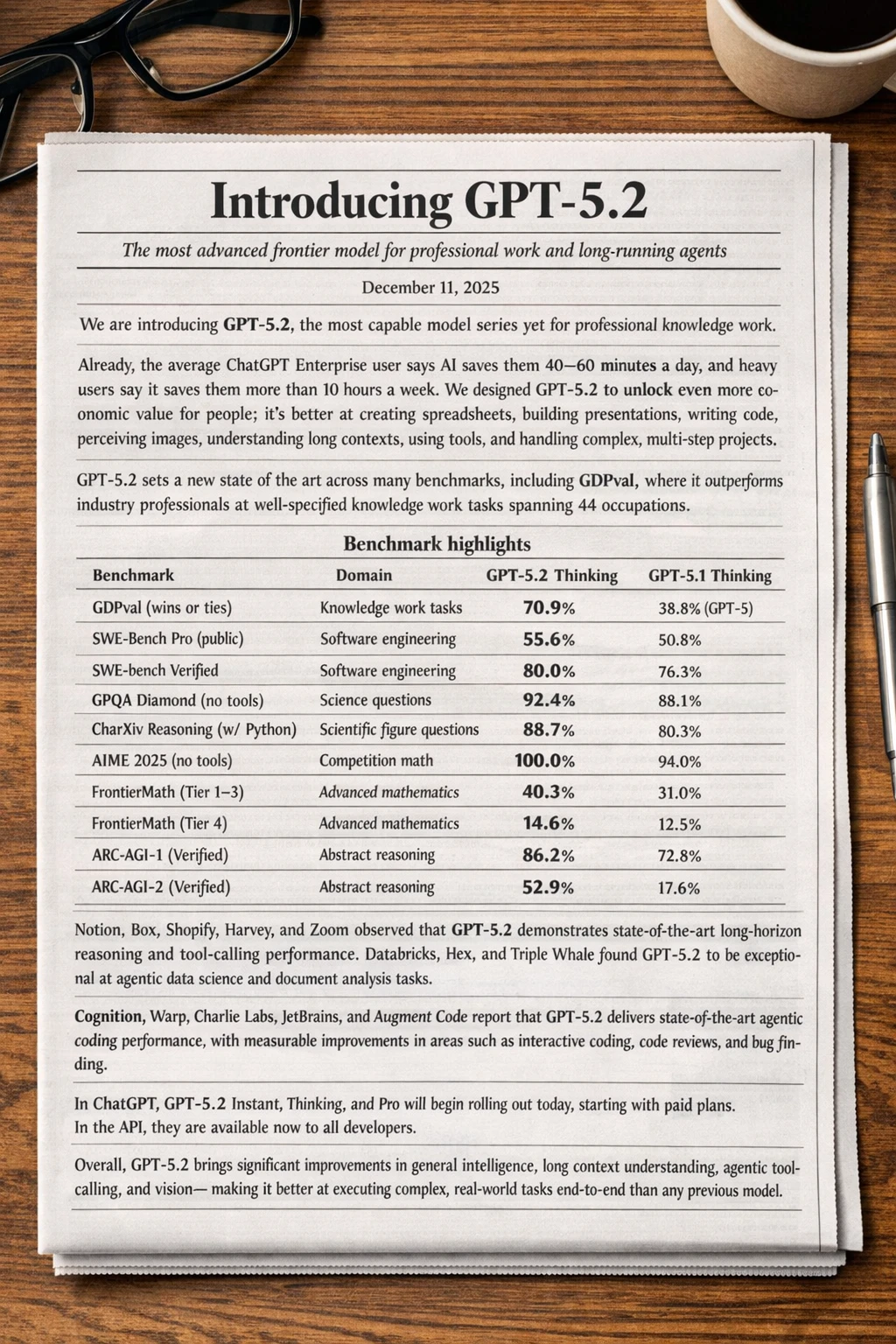
Pixno (opens in a new tab) is an AI note taker built for turning visual and audio material into organized notes. It can process lecture slides, whiteboard photos, textbook pages, screenshots, PDFs, and recordings, then turn them into structured study content. For a deeper workflow, see our guide to turning PowerPoint slides into study notes.
Pixno also includes a dedicated image generation module with access to multiple image models, including OpenAI-related image models where available. As GPT Image 2 access rolls out across surfaces and account tiers, Pixno is the kind of workflow layer where students can move from raw class material to notes, summaries, and generated study visuals in one place.
For now, the practical workflow is:
- Use Pixno to capture or upload your lecture material.
- Convert slides, images, or audio into structured notes.
- Identify the topics that would benefit from a diagram or infographic.
- Generate study visuals from the cleaned-up notes.
- Save the final image next to the source notes so you can verify it later.
This is more reliable than prompting an image model with a messy screenshot directly. First extract and organize the knowledge. Then generate the visual.
GPT Image 2 prompts students can copy
Infographic prompt
Create a study infographic about [topic] for [course].
Include:
- 5 key ideas
- 3 important terms
- 1 common misconception
- 1 simple example
Make the layout clean, readable, and suitable for quick review before an exam.
Concept map prompt
Create a concept map for [topic].
Put the central concept in the middle. Connect related ideas with labeled arrows. Group ideas into categories. Keep each label under 8 words. Make the relationships easy to follow.
Exam review sheet prompt
Turn this material into a visual exam review sheet.
Use sections for:
- Definitions
- Formulas or rules
- Common mistakes
- Example problem
- Quick checklist
Keep the design simple and high contrast.
Diagram cleanup prompt
Edit this diagram for clarity.
Keep the same meaning, labels, and structure. Improve spacing, contrast, and readability. Remove visual clutter. Do not add new facts.
GPT Image 2 vs normal note-taking tools
GPT Image 2 is not a replacement for notes. It is a visual layer on top of notes.
| Task | Better tool |
|---|---|
| Capture a lecture | AI note taker such as Pixno |
| Turn slides into structured notes | Pixno |
| Summarize a textbook chapter | ChatGPT or Pixno |
| Generate a diagram from clean notes | GPT Image 2 |
| Create study infographics | GPT Image 2 |
| Verify facts and formulas | Textbook, lecture slides, professor, or trusted source |
The best workflow is not “generate an image and trust it.” It is “organize the source material, generate a visual draft, then verify it.”
Limitations students should know
GPT Image 2 is powerful, but it does not remove the need to think.
- Accuracy still matters. A beautiful biology diagram can still mislabel a structure.
- Small text can be fragile. Even improved text rendering should be checked.
- Transparent backgrounds are not currently supported for GPT Image 2 in OpenAI’s docs.
- API and account access may vary. OpenAI’s model page lists GPT Image 2 and the
gpt-image-2-2026-04-21snapshot, but access can depend on plan, usage tier, and rollout status. - Do not use generated visuals as your only source. Use them as memory aids and review sheets.

Quick FAQ
Is it called ChatGPT Image 2 or GPT Image 2?
OpenAI’s developer docs use the model name GPT Image 2. Many users may call it “ChatGPT Image 2” because they experience image generation inside ChatGPT.
Can GPT Image 2 make infographics?
Yes. Infographics, diagrams, concept maps, visual summaries, and study sheets are among the most useful student workflows. You should still verify labels, numbers, and factual details.
Can I use GPT Image 2 for lecture notes?
Yes, but use it after your notes are organized. First turn slides, photos, or audio into structured notes. Then ask GPT Image 2 to create a visual study sheet or diagram from those notes.
Does GPT Image 2 support transparent backgrounds?
OpenAI’s image generation tool docs say GPT Image 2 does not currently support transparent backgrounds.
Can Pixno use GPT Image 2?
Pixno already includes image generation workflows and supports multiple image models, including OpenAI-related models where available. As GPT Image 2 availability expands, Pixno can help students connect note capture, note cleanup, and study visual generation in one workflow.
Bottom line
GPT Image 2 is most valuable for students when it turns information into something easier to remember.
Use it to make a concept visible: a process diagram, a one-page study sheet, a visual flashcard, or a cleaned-up version of a messy board photo. Use Pixno or another note workflow to organize the source material first. Then use GPT Image 2 to make the material easier to review.
That combination is where AI image generation becomes genuinely useful for studying.