
- Name
- Tison Brokenshire
Updated on
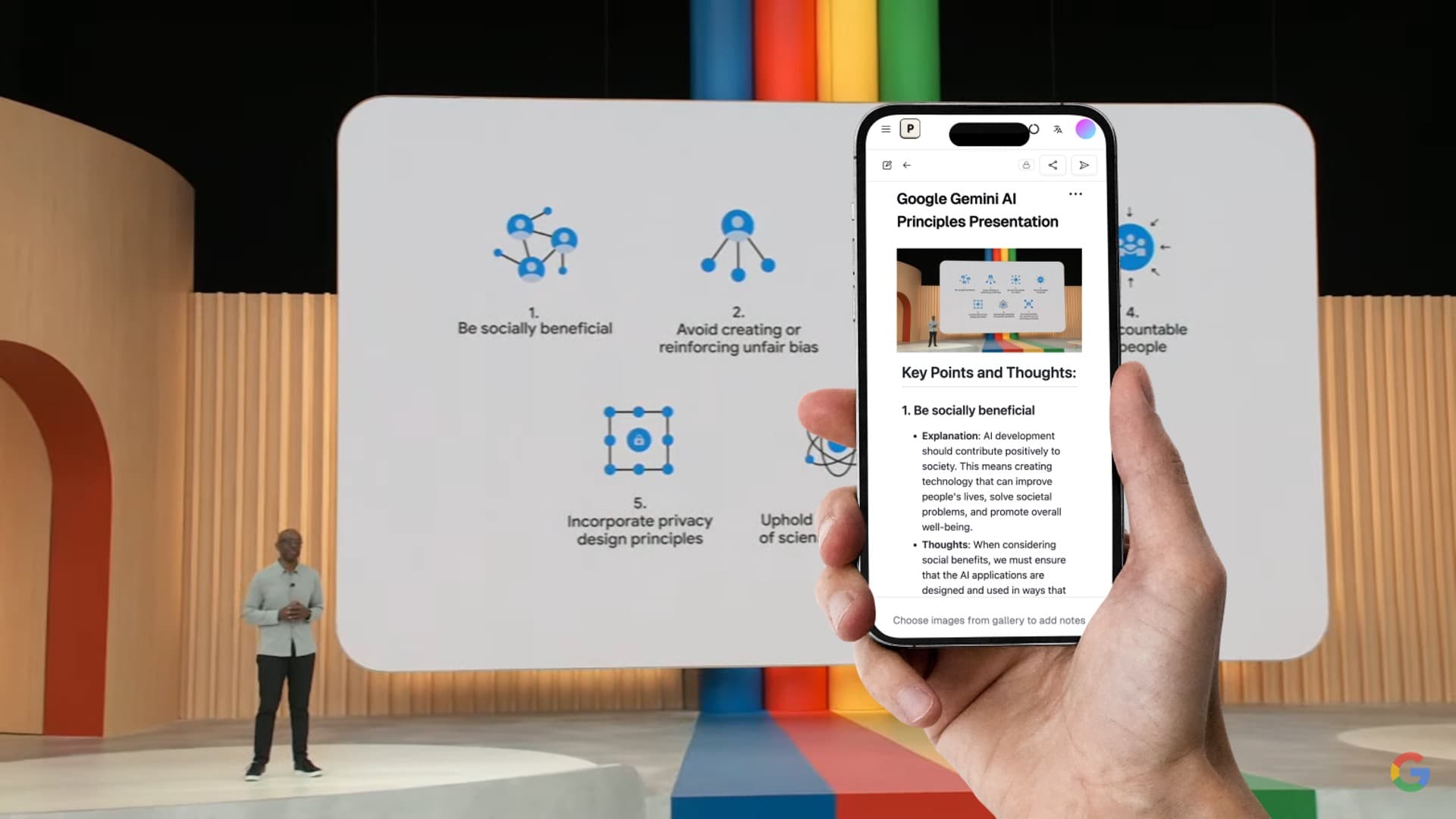
How to Study From Lecture Slides and Speaker Notes
A professor uploads the lecture deck after class. The slides look familiar, but they are not enough. Each slide has a title, a few bullets, and maybe a diagram. The explanation that made everything make sense during class is missing. When exam week arrives, students end up rereading the same slide deck over and over without building a usable study guide.
This gets worse when the lecture is dense. Biology, nursing, psychology, economics, and computer science courses often rely on compressed slides. Important definitions are shortened. Processes are hidden inside diagrams. Speaker notes, if they exist, contain examples and transitions that never appear on the visible slide. Without a system, students waste hours trying to reconstruct the lecture from fragments.
The solution is to stop treating slides like finished notes. Slides and speaker notes work best as raw material. When students combine the slide structure, the speaker-note context, and a clear review workflow, the same lecture deck becomes a practical study guide. This article explains exactly how to do that.
Why Slides Alone Are Hard to Study From
Lecture slides are designed for teaching in real time, not for self-study later. In class, the professor adds context, examples, warnings, and emphasis. On the slide, that context disappears.
Common problems with slide-only studying:
- bullets are too short to stand on their own
- diagrams show relationships without explaining them
- key definitions are spread across several slides
- transitions between ideas are missing
- students cannot tell what mattered most in the lecture
Speaker notes help because they often contain the hidden explanation. Even when the professor does not share them, students can rebuild that missing context using a structured note workflow.
Slides vs Speaker Notes vs Final Study Notes
| Material | What It Contains | Main Weakness | Best Use |
|---|---|---|---|
| Slides | headings, bullets, charts, diagrams, formulas | too compressed | outline of the lecture |
| Speaker notes | explanation, examples, transitions, talking points | often messy or unavailable | fill gaps behind each slide |
| Final study notes | organized concepts, definitions, review prompts | takes work to produce | actual exam preparation |
The Best Workflow at a Glance
| Step | What to Do | Time | Outcome |
|---|---|---|---|
| 1 | Skim the slide deck once | 5-10 min | Understand lecture structure |
| 2 | Pull speaker notes or class context | 10-15 min | Recover missing explanation |
| 3 | Group slides into topics | 10 min | Turn slides into study sections |
| 4 | Convert into notes manually or with AI | 15-40 min | Clean study document |
| 5 | Add review questions and key terms | 10 min | Active recall material |
| 6 | Reuse with spaced repetition | ongoing | Better retention |
Step 1: Read the Slides for Structure, Not Detail
Start by scanning the entire deck quickly. Do not try to memorize anything yet.
The goal of this first pass is to answer four questions:
- What are the main topics in this lecture?
- Which slides are concept slides, and which are examples?
- Which slides contain diagrams, formulas, or comparisons?
- Where does the lecture shift from one topic to another?
Most students make the mistake of taking notes slide by slide in order. That creates bloated notes and hides the real structure. Instead, use the slide titles and repeated vocabulary to group the lecture into topic blocks.
For example:
| Slide Range | Likely Topic Block |
|---|---|
| 1-4 | overview and learning objectives |
| 5-10 | core theory or model |
| 11-15 | examples or case studies |
| 16-22 | process, formula, or application |
| 23-25 | summary and review |
This makes the rest of the workflow much faster because students stop treating every slide as equally important.
Step 2: Pull the Missing Context From Speaker Notes
If speaker notes are available, use them immediately. They often contain the exact explanation students were trying to remember after class.
Speaker notes are useful for:
- definitions that were simplified on the slide
- examples the professor planned to say aloud
- transitions that explain why one concept leads to another
- warnings about common mistakes
- likely emphasis points for quizzes or exams
If the speaker notes are not included, rebuild them from other sources:
- lecture recordings
- handwritten notes from class
- comments written directly on printed slides
- discussion board clarifications
- AI-generated summaries based on the deck
The point is not to create a transcript. The point is to recover enough explanation to make the slide deck usable.
Step 3: Build One Combined Note Set
Once the slide structure and speaker-note context are clear, combine them into one document. This is where the lecture becomes study material instead of presentation material.
Use a simple structure like this:
## Topic Name

### Key Idea
- One-sentence explanation

### What the Slides Show
- Main bullets from the deck

### What the Speaker Notes Add
- Clarification
- Example
- Common mistake

### What to Remember for Exams
- Formula, term, process, or comparison
This format solves a common problem: students often copy slide bullets without recording what those bullets actually mean. By separating "what the slides show" from "what the notes add," the material becomes much easier to review.
Step 4: Choose the Right Conversion Method
There is no single best method for every course. The right choice depends on how visual the lecture is, how much time is available, and whether speaker notes are accessible.
Method 1: Manual Conversion
This is slower, but useful for difficult courses or final-exam prep.
Best for
- technical lectures
- formula-heavy classes
- courses where understanding matters more than speed
Process
- open the slide deck and speaker notes side by side
- group slides into topics
- rewrite each topic in plain language
- add one summary line per topic
- end with 3-5 recall questions
Pros and cons
| Pros | Cons |
|---|---|
| strongest understanding | slowest method |
| easiest to personalize | repetitive for long decks |
| good for hard finals | difficult to keep up weekly |
Method 2: Guided AI Conversion
This is the most practical middle ground for weekly review.
Students upload the slides, provide the context they already have, and tell the AI what output format to create.
A useful prompt is:
Read these lecture slides and turn them into study notes.
Group related slides into topics.
For each topic, explain the concept in plain language, list key terms, and add 2 review questions.
If speaker notes are included, merge them into the explanation instead of repeating the slide bullets.
Best for
- weekly review
- long lecture decks
- classes where slides contain both text and diagrams
Pros and cons
| Pros | Cons |
|---|---|
| much faster than manual notes | still needs review |
| useful for repetitive slide decks | may flatten nuance |
| can output tables and questions | can miss lecture emphasis |
Method 3: Direct Slide-to-Notes Workflow With Pixno
Pixno (opens in a new tab) fits best when the deck contains diagrams, screenshots, whiteboard captures, or visually dense slides. Instead of just copying the visible text, it can turn slide content into structured notes that are easier to review and export.
This workflow works well for:
- science and medical diagrams
- flowcharts and process slides
- slides with screenshots or visual examples
- large decks that would take too long to rewrite manually
Recommended process:
- upload the lecture deck or slide PDF to Pixno (opens in a new tab)
- let the tool generate structured notes
- compare the output against your own class notes or speaker notes
- add what the professor emphasized
- export the final notes to Notion, Obsidian, or Markdown
This is the fastest option when the deck is visually dense and the student's main job is to turn presentation material into a study-friendly format.
Turn photos to notes and knowledge base
Pixno is your AI note taking assistant that turn photos, audio, docs into well structured text notes and create your personal knowledge base.
Get StartedStep 5: Turn Notes Into an Actual Study Guide
Many students stop after generating notes. That is not enough. A note file is useful, but a study guide needs stronger retrieval cues.
After the notes are created, add these elements:
| Add-on | Why It Helps |
|---|---|
| key term table | improves quick review |
| formula list | isolates high-risk memorization items |
| concept comparison table | helps with similar theories or categories |
| review questions | creates active recall |
| one-paragraph summary per topic | forces compression and understanding |
Example review table:
| Topic | Key Question | Short Answer |
|---|---|---|
| Operant conditioning | What changes behavior? | consequences like reinforcement and punishment |
| Cellular respiration | What is the main output? | ATP generated through metabolic stages |
| TCP vs UDP | What is the tradeoff? | reliability vs speed |
This final layer is what makes the material usable during exam prep.
Step 6: Revisit the Guide With a Review Schedule
The finished guide should not just sit in a folder. Use it on a schedule.
A practical review rhythm:
| When | What to Review |
|---|---|
| same day | skim the cleaned notes once |
| 2 days later | answer the review questions without looking |
| 1 week later | review summary tables and weak spots |
| before the exam | do a full recall pass from memory |
For classes with many decks, combine this with the workflow in Spaced Repetition Schedule Cheat Sheet.
Common Mistakes When Studying From Slides
| Mistake | What Goes Wrong | Better Move |
|---|---|---|
| rereading slides passively | low retention | convert into topic-based notes |
| copying every bullet | too much noise | summarize by concept block |
| ignoring speaker notes | explanation gets lost | merge them into each topic |
| keeping slides and notes separate | review becomes fragmented | build one combined document |
| studying only before exams | no long-term retention | review in short cycles |
When to Create a Separate Article or Study Guide Instead of Reusing Existing Notes
If a lecture deck keeps surfacing in revision, it usually means the original material is not study-friendly enough. That is a signal to build a separate guide.
Create a dedicated study guide when:
- the deck is longer than 30-40 slides
- the lecture includes many diagrams or comparisons
- the professor speaks far beyond what is written on the slides
- multiple quiz questions are coming from the same lecture
- the class uses speaker notes inconsistently
This is also where related workflows become useful:
- Convert Lecture Slides to Notes
- How to Turn PowerPoint Slides into Study Notes
- How to Photograph Whiteboard Notes Clearly
- AI Tool Convert PowerPoint Lectures Slides into Notes
FAQ
What are speaker notes in lecture slides?
Speaker notes are the extra explanations stored below slides in PowerPoint, Google Slides, or Keynote. Professors use them as presentation prompts, but when they are shared with students, they often contain examples, transitions, and clarifying details that do not appear on the slide itself.
Can students study from slides without speaker notes?
Yes, but it is slower and less reliable. Slides alone usually show headings, diagrams, and short bullets. Speaker notes often provide the missing explanation that makes the material understandable during revision.
How do I export lecture slides with speaker notes?
In PowerPoint, use Print or Export and choose Notes Pages or a PDF layout that includes notes. In Google Slides, notes are easier to copy separately or export through speaker notes workflows. If notes are not included, students can still build them by combining slide text with class explanations and AI-generated summaries.
What is the fastest way to turn lecture slides into study notes?
The fastest method is to upload the slide deck to an AI tool that can read both slide text and visual content, then review the output against the lecture context. This is much faster than rewriting every slide manually.
Should I study from the slides first or the speaker notes first?
Start with the slides to understand the structure of the lecture, then use speaker notes to fill in the missing explanation. After that, convert both into a single study sheet or note document you can review repeatedly.