
- Name
- Tison Brokenshire
Updated on
AI Notes Generator: How to Auto-Generate Study Notes from Any Source
You just finished a 90-minute lecture with 60 dense slides. You recorded the audio. You snapped photos of the whiteboard. Now you need organized study notes from all of it — and the exam is next week.
Manually reviewing every slide and transcribing every recording takes hours. Most students spend more time creating notes than actually studying from them. Even when you take notes during class, you miss key points while writing and lose the connections between concepts across different sources.
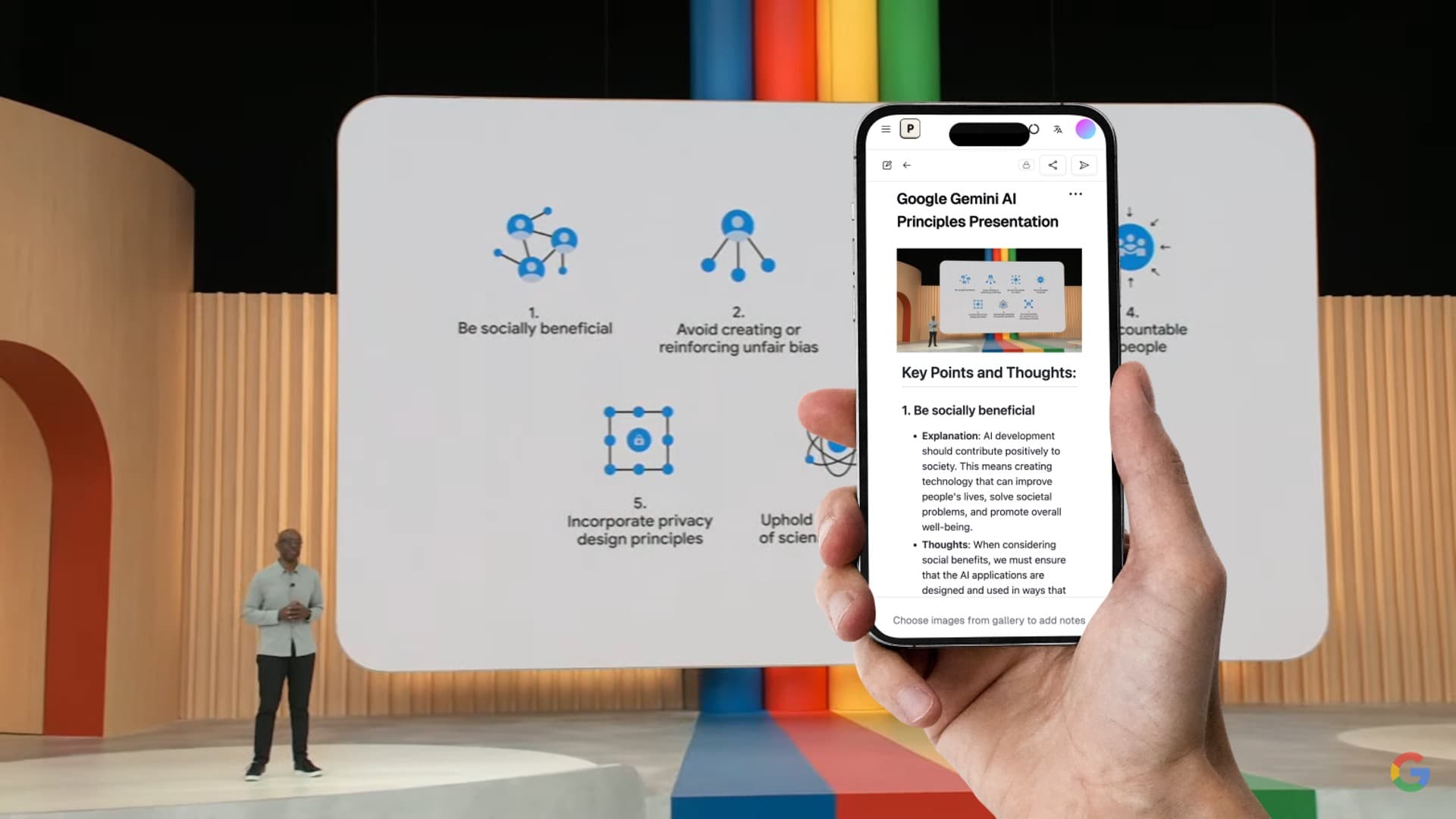
AI notes generators solve this problem. These tools take your raw materials — lecture slides, images, audio recordings, PDFs, videos — and transform them into structured, organized study notes automatically. Instead of spending three hours on post-lecture review, you spend ten minutes uploading files and get clean notes ready for study.
This guide explains how AI notes generators work, compares the best options available in 2026, and walks through the exact steps to generate notes from different source types.
What Is an AI Notes Generator?
An AI notes generator is a tool that uses artificial intelligence to convert raw content into organized text notes. Unlike simple transcription or OCR tools that just extract text, an AI notes generator:
- Understands context — It doesn't just read words; it interprets meaning, identifies key concepts, and recognizes relationships between ideas.
- Structures output — Raw content becomes organized notes with headings, bullet points, summaries, and key takeaways.
- Handles multiple input types — The best tools accept images, slides, audio, video, PDFs, and handwritten content.
- Preserves important details — Tables, diagrams, formulas, and visual information get translated into text form without losing meaning.
The key difference between an AI notes generator and a basic text extractor: a text extractor gives you words. An AI notes generator gives you understanding.
Best AI Notes Generators Compared (2026)
| Tool | Best For | Input Types | Output Quality | Price | Free Tier |
|---|---|---|---|---|---|
| Pixno | Images, slides, visual content | Images, slides, audio, PDF | Excellent | $3/mo | 50 credits/mo |
| NoteGPT | YouTube videos | Video URLs, PDFs, web pages | Good | $9.99/mo | 15/mo |
| StudyFetch | Lecture slides to study guides | Slides, PDFs, audio | Good | $7.99/mo | 2 uploads |
| Google NotebookLM | Multi-document research | PDFs, Docs, websites, YouTube | Good | Free | Generous |
| Notion AI | Workspace note generation | Text, PDFs (limited) | Good | $12/user/mo | Trial only |
| ChatGPT | General text generation | Text, images, PDFs | Variable | $20/mo | Limited |
How These Tools Differ
Each AI notes generator excels at a specific input type:
| If Your Source Is... | Best Tool | Why |
|---|---|---|
| Lecture slides (PowerPoint/PDF) | Pixno | Reads slide layouts, charts, and diagrams — not just text |
| Photos of whiteboards or textbooks | Pixno | GPT-4 Vision-powered image understanding |
| YouTube lecture recordings | NoteGPT | Processes video URLs with timestamps |
| Multiple research documents | Google NotebookLM | Synthesizes across sources with citations |
| Audio recordings | Pixno or StudyFetch | Real-time or uploaded audio transcription + structuring |
| Handwritten notes | Pixno | Goes beyond OCR to understand handwriting context |
How to Generate Notes from Slides with Pixno
Lecture slides are the most common source students need to convert into study notes. Here's the step-by-step process using Pixno:
Step 1: Upload your slides
Go to Pixno (opens in a new tab) and create a new notebook. Upload your PowerPoint, PDF, or Google Slides file. You can also upload individual slide images.
Step 2: Select your output format
Choose the note structure you want:
- Structured notes — Headings, bullet points, and key concepts organized by slide
- Summary — Condensed overview of the entire presentation
- Study guide — Question-and-answer format for exam review
Step 3: Generate and review
Pixno processes each slide, interpreting text, charts, diagrams, and images. Within minutes, you get organized notes that capture both the text content and the visual information from every slide.
Step 4: Export your notes
Export to your preferred format: Markdown, Google Docs, Notion, Obsidian, or MS Word. Your notes are ready to review.
The entire process takes under 5 minutes for a typical 50-slide lecture deck. Compare that to the 2-3 hours of manual note-taking most students spend.
Turn photos to notes and knowledge base
Pixno is your AI note taking assistant that turn photos, audio, docs into well structured text notes and create your personal knowledge base.
Get StartedHow to Generate Notes from Images
Photos of whiteboards, textbook pages, handwritten notes, and diagrams contain information that most note-taking tools simply can't process. Traditional OCR extracts text but loses all context — a flowchart becomes a random list of words, a table becomes jumbled text, and handwritten annotations disappear entirely.
AI notes generators with vision capabilities handle this differently:
- Upload the image — Take a photo of the whiteboard, textbook page, or handwritten notes
- AI interprets the content — The tool analyzes the full visual layout, not just text
- Structured notes are generated — Diagrams become descriptions, tables stay as tables, formulas render correctly
Pixno is the strongest option here because it uses GPT-4 Vision to understand visual content at a deeper level than basic OCR. A photo of a complex biology diagram becomes organized notes explaining each component and their relationships — not just a list of labels extracted from the image.
Tip: For best results, ensure good lighting and a straight angle when photographing content. Multi-image upload lets you process an entire chapter's worth of textbook photos in one batch.
How to Generate Notes from Audio and Video
For audio recordings of lectures and meetings, the process works in two stages: transcription (speech to text) and structuring (text to organized notes).
| Method | Tool | How It Works | Best For |
|---|---|---|---|
| Upload recording | Pixno | Upload audio file → transcription → structured notes | Post-lecture review |
| Upload recording | StudyFetch | Live Lecture mode or uploaded audio → study guide | In-class capture |
| Paste video URL | NoteGPT | YouTube URL → timestamped summary + transcript | Online lectures |
| Upload to notebook | Google NotebookLM | YouTube URL → searchable notes + Audio Overview | Research synthesis |
For live lectures: StudyFetch's Live Lecture mode transcribes in real time and timestamps everything, so you can search notes by what was said at any point.
For recorded lectures: Upload the audio file to Pixno and get structured notes that pull out key concepts, definitions, and important details rather than a raw transcript.
For YouTube content: NoteGPT generates a summary, full transcript with timestamps, and even a mind map — useful for online courses and tutorial videos.
Tips for Better AI-Generated Notes
AI notes generators produce good output by default, but you can improve quality with these practices:
1. Use high-quality source material
Blurry photos, poor audio recordings, and low-resolution slides produce worse notes. Use good lighting for photos, record audio clearly, and upload original slide files instead of screenshots when possible.
2. Process one topic at a time
Upload slides from one lecture, not an entire semester. Processing smaller, focused sets of content produces more coherent and better-organized notes.
3. Review and edit the output
AI-generated notes are 90%+ accurate, but always review for technical terms, formulas, and specialized vocabulary that the AI might misinterpret. Spending 5 minutes editing AI-generated notes is still far faster than writing notes from scratch.
4. Combine multiple source types
The best study notes come from combining sources. Upload your lecture slides to get the structured content, then upload your whiteboard photos to capture additional context and examples discussed in class.
5. Export to your study system
Don't leave notes in the generator tool. Export them to your actual study environment — whether that's Notion, Obsidian, Google Docs, or printed flashcards. Notes are only useful if they're in the place where you study.
AI Notes Generator vs Manual Note-Taking
| Factor | AI Notes Generator | Manual Note-Taking |
|---|---|---|
| Time | 5-10 minutes per lecture | 2-3 hours per lecture |
| Completeness | Captures everything from source | Misses points while writing |
| Visual content | Interprets charts, diagrams, images | Difficult to reproduce accurately |
| Organization | Auto-structured with headings | Depends on your note-taking skill |
| Review readiness | Immediately ready for study | Often needs rewriting/organizing |
| Retention | Lower initial retention (passive) | Higher initial retention (active) |
| Best strategy | Use AI notes as base, then actively review | Use for content where speed matters less |
The ideal approach combines both: use an AI notes generator to capture everything quickly, then actively review and annotate the generated notes. This gives you completeness (nothing missed) plus retention (active engagement with the material).
FAQ
What is the best free AI notes generator?
Google NotebookLM is the most capable free option for document-based note generation. For image and slide-based notes, Pixno offers 50 free credits per month. Knowt is best for free flashcard-based study notes, though it doesn't generate notes from images or slides.
Can AI notes generators handle math and science content?
Yes, but quality varies. Pixno handles mathematical formulas, chemical equations, and scientific diagrams well because it uses vision AI to interpret visual content rather than just extracting text. For purely text-based math content, ChatGPT and NotebookLM also perform reasonably well.
Are AI-generated notes good enough for exam preparation?
AI-generated notes capture content accurately (90%+), but they work best as a starting point rather than the only study resource. The most effective approach is generating AI notes for completeness, then actively reviewing, highlighting, and adding your own annotations. Studies show that active engagement with material — not just reading — drives retention.
How do AI notes generators handle multiple languages?
Most AI notes generators support multiple languages. Pixno processes content in English, Chinese, Japanese, Spanish, French, German, Italian, and more. The tool auto-detects the language of your source material and generates notes in the same language, or you can specify a different output language.
Do I need internet access to use AI notes generators?
Yes. All current AI notes generators require internet access because they process content through cloud-based AI models. The exception is Obsidian with local LLM plugins, which can generate basic notes offline — though quality is significantly lower than cloud-based options.
Related Reading
- Best AI Note-Taking Apps in 2026 — Full comparison of 10 AI note-taking tools
- How to Convert PowerPoint Slides into Notes with AI — Step-by-step guide for slides to notes
- Best Image to Text AI Tools in 2026 — Compare OCR and text extraction tools
- How to Convert Handwriting to Text — Complete guide for digitizing handwritten notes
- Effective Note-Taking Tips for Class — Practical note-taking techniques that work
- Note Maker AI: 7 Best Tools Compared — Find the right AI note maker for your workflow
- Free AI Note Generator Tools Compared — Best free options ranked by value
- Convert Lecture Slides to Notes — Step-by-step guide for students
- Best AI Tools in 2026 — Top 12 AI tools for productivity, study, and creative work
- Cornell Notes with AI — Upgrade the Cornell method with AI tools