
- Name
- Tison Brokenshire
Updated on
How to Turn PowerPoint Slides into Study Notes (3 Methods)
Your professor just uploaded a 75-slide lecture deck to the course portal. The midterm covers everything in those slides. You need organized study notes — but copying bullet points from each slide by hand will take all evening, and you'll still miss the charts, diagrams, and visual relationships that actually matter for the exam.
This is one of the most common academic time sinks. Students spend 2-4 hours converting a single PowerPoint into usable notes. Multiply that by 4-5 courses, and you're spending an entire day each week just reformatting information you already have. The real problem: PowerPoint slides are designed for presentation, not for studying. Key concepts get split across multiple slides. Important details hide inside diagrams. And the logical flow that makes sense during a live lecture disappears when you're reviewing slides alone.
There are three proven ways to turn PowerPoint slides into study notes. Each method has different trade-offs for speed, quality, and effort. Here's when to use each one.
Quick Comparison: 3 Methods for Converting PowerPoint to Notes
| Factor | Method 1: AI Tools | Method 2: Manual Note-Taking | Method 3: Hybrid (AI + Manual) |
|---|---|---|---|
| Time per 50-slide deck | 5-10 minutes | 2-4 hours | 30-60 minutes |
| Captures visual content | Yes (charts, diagrams) | Partially (requires redrawing) | Yes |
| Organizes automatically | Yes | Depends on skill | Yes (AI base + manual polish) |
| Retention benefit | Low (passive) | High (active processing) | High (active review of AI notes) |
| Cost | Free–$10/mo | Free | Free–$10/mo |
| Best for | Fast review, completeness | Deep learning, simple slides | Exam prep, complex material |
Method 1: Use an AI Tool (Fastest)
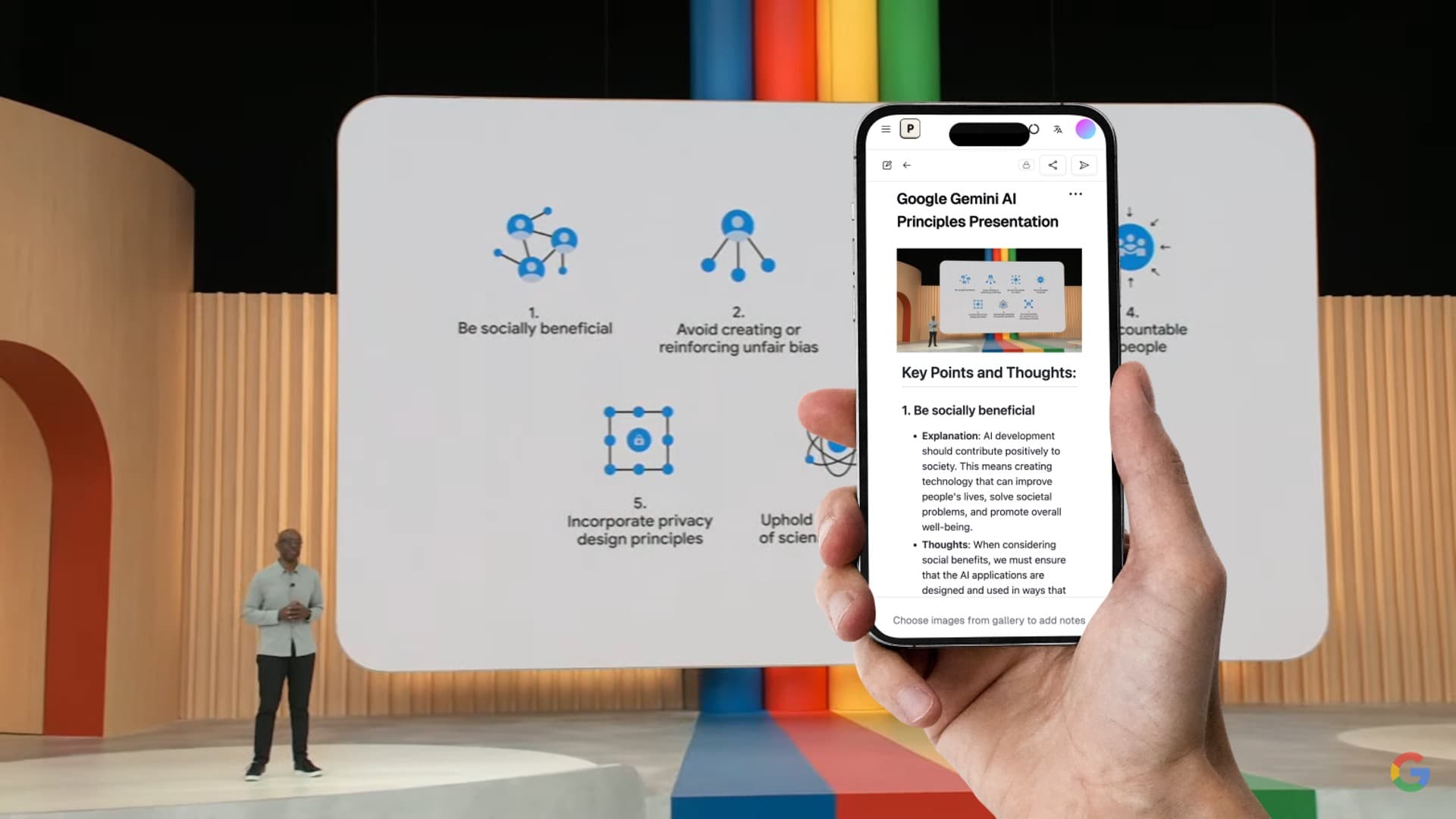
AI-powered tools read your entire slide deck — text, images, charts, diagrams, and layouts — and generate organized notes in minutes. This is the fastest method and the only one that handles visual content properly.
Step-by-Step with Pixno
Pixno (opens in a new tab) uses GPT-4 Vision to interpret slides at a deeper level than basic text extraction. It understands charts, diagrams, and visual relationships between concepts.
Step 1: Upload your PowerPoint file
Go to photes.io (opens in a new tab) and create a new notebook. Drag your .pptx or .pdf file into the upload area. Pixno accepts PowerPoint files directly — no need to export as images first.
Step 2: Let the AI process your slides
Pixno analyzes each slide individually, interpreting:
- Text content and bullet point hierarchy
- Chart data and diagram relationships
- Table information and formatted data
- Images and visual annotations
- Speaker notes (if included in the file)
Step 3: Review the generated notes
Within a few minutes, you get structured notes organized by slide or topic. The output includes headings, bullet points, key definitions, and descriptions of visual content that would be impossible to capture manually.
Step 4: Export to your study environment
Export your notes to Google Docs, Notion, Obsidian, or download as Markdown/Word. The notes are formatted and ready to study from immediately.
Turn photos to notes and knowledge base
Pixno is your AI note taking assistant that turn photos, audio, docs into well structured text notes and create your personal knowledge base.
Get StartedOther AI Tools for Slides to Notes
| Tool | How It Works | Strengths | Limitations |
|---|---|---|---|
| Pixno | Upload slides → AI interprets all content → structured notes | Best visual interpretation; handles charts and diagrams | Requires credits for large decks |
| StudyFetch | Upload slides → AI creates study guide + flashcards | Generates flashcards alongside notes | Can't process images/photos of slides |
| Google NotebookLM | Upload PDF → Ask questions → Generate summaries | Free; good at synthesizing across documents | Doesn't interpret visual slide content |
| ChatGPT | Upload PDF → Prompt for notes | Flexible prompting; handles multiple formats | Inconsistent with visual content; requires good prompts |
When to use this method: You need notes fast, the slides contain charts/diagrams/visual data, or you have multiple decks to process. This is the most efficient approach when time is the constraint.
Method 2: Manual Note-Taking (Best for Retention)
Manual note-taking is slower, but the process of actively writing forces you to engage with the material. Research consistently shows that active processing (summarizing in your own words) creates stronger memory traces than passive reading.
The Slide Reduction Framework
Don't copy slides word-for-word. Use this framework to compress each slide into study-ready notes:
Step 1: Identify the core concept
For each slide, ask: "What's the one thing this slide is teaching?" Write that as a heading or key point. Ignore decorative text and filler phrases.
Step 2: Extract supporting evidence
Under the core concept, list only the evidence, examples, or data that you'd need to recall on an exam. Skip anything that's just context or transition text.
Step 3: Translate diagrams into words
For charts and diagrams, write a one-sentence description of what the visual shows and why it matters. Example: "Figure 3 shows cell division stages — prophase takes longest, telophase is shortest."
Step 4: Add connections between slides
This is where manual notes beat AI: you can draw connections between concepts across slides. Add notes like "connects to slide 12's discussion of X" or "contradicts the theory from week 3."
Step 5: Write summary questions
At the end of each section, write 2-3 questions that test the material. This turns your notes into a self-testing study guide.
Templates for Manual PowerPoint Notes
Cornell Method (recommended for lectures):
| Cue Column (questions) | Notes Column (key points from slides) |
|---|---|
| What causes X? | - Point 1 from slide 5 |
| How does Y relate to Z? | - Evidence from slide 8 diagram |
| - Example from slides 10-11 | |
| Summary: One-sentence summary of the entire section |
Outline Method (recommended for sequential content):
I. Main Topic (from slide group 1-5)
   A. Subtopic (slide 2)
      1. Key detail
      2. Key detail
   B. Subtopic (slide 4)
      1. Key detail with data from chart
II. Main Topic (from slide group 6-12)
   ...
When to use this method: The slides are mostly text (few charts/diagrams), you want deep understanding rather than fast review, or the material is conceptually complex and requires you to build mental models.
Method 3: Hybrid Approach (Best for Exam Prep)
The hybrid method gives you the best of both worlds: completeness from AI and retention from active engagement. This is the most effective approach for exam preparation.
Step-by-Step Hybrid Workflow
Step 1: Generate AI notes first (5 minutes)
Upload your slides to Pixno and generate structured notes. This gives you a complete, accurate base that captures everything — including visual content.
Step 2: Print or open the AI notes alongside the original slides (2 minutes)
Set up a side-by-side view: AI-generated notes on one side, original slides on the other.
Step 3: Active review pass (20-40 minutes)
Go through the AI notes and:
- Highlight the 20% of content most likely to appear on the exam
- Rewrite complex sections in your own words
- Add connections between topics that the AI didn't link
- Write margin questions next to each section (Cornell method style)
- Flag gaps where you need to review textbook or lecture recordings
Step 4: Create a summary sheet (10 minutes)
Write a one-page summary of the entire deck by hand. This forces your brain to compress and prioritize the material. Include only what you couldn't reconstruct from memory.
Step 5: Self-test using your margin questions
Cover the notes and answer your own questions. This active recall step is what converts short-term study into exam-ready knowledge.
Why the Hybrid Method Works
| Study Technique | What It Provides | Time Required |
|---|---|---|
| AI note generation | Completeness — nothing missed | 5 min |
| Active review with highlighting | Prioritization — focus on exam content | 20 min |
| Rewriting in your own words | Encoding — deeper processing into memory | 15 min |
| Summary sheet creation | Compression — forces hierarchy of importance | 10 min |
| Self-testing from questions | Retrieval — strongest study technique known | 10 min |
| Total | Complete, prioritized, memorized | ~60 min |
Compare this to 3+ hours of manual note-taking that often produces incomplete notes with no built-in self-testing.
Choosing the Right Method for Your Situation
| Situation | Recommended Method | Why |
|---|---|---|
| Exam is tomorrow | Method 1 (AI only) | Speed is the priority |
| Weekly lecture review | Method 3 (Hybrid) | Balance between speed and retention |
| Slides are mostly diagrams/charts | Method 1 (AI) | Manual can't capture visual data well |
| Slides are mostly text | Method 2 (Manual) | Active writing builds retention |
| Group study prep | Method 1 (AI) → share | Everyone studies from the same complete notes |
| Deep conceptual understanding needed | Method 3 (Hybrid) | AI captures content, you build understanding |
| Professor tests on specific slide details | Method 1 (AI) | AI captures every detail from every slide |
| Cumulative final exam | Method 3 (Hybrid) | Need both completeness and deep memory encoding |
Common Mistakes When Converting Slides to Notes
Copying slides word-for-word. Slides contain presentation-style text — short phrases, incomplete sentences, and formatting designed for a speaker. Good study notes require complete thoughts and context that may not appear on the slide itself.
Ignoring diagrams and charts. Visual content often contains the most testable material in STEM courses. If your note-taking method can't handle visual content (manual note-taking struggles here), you're missing critical information.
Not reviewing notes within 24 hours. The forgetting curve is real. Notes generated on Monday and first reviewed on Friday have lost most of their learning value. Review AI-generated or manual notes the same day they're created.
Treating all slides equally. Not every slide is equally important. Title slides, transition slides, and slides with only a quote or image often add no study value. Focus your time on content-dense slides.
FAQ
Can I use AI to turn Google Slides into notes too?
Yes. Export your Google Slides presentation as a PDF (File → Download → PDF), then upload it to Pixno (opens in a new tab) or another AI tool. The resulting notes will be the same quality as those from a PowerPoint file.
How accurate are AI-generated notes from slides?
Modern AI tools like Pixno achieve 90%+ accuracy for text content and are strong at interpreting charts and diagrams. Accuracy is lower for highly specialized notation (custom symbols, unusual formatting). Always do a quick review pass, especially for technical content.
Will converting slides to notes with AI help me learn the material?
AI notes provide completeness but not retention. Simply reading AI-generated notes is passive learning. For actual exam preparation, use the hybrid method (Method 3): generate AI notes for completeness, then actively review, annotate, and self-test. This combination gives both completeness and the active engagement that builds memory.
How do I handle slides with animations or build effects?
AI tools process the final state of each slide (all elements visible). If your professor uses progressive builds where information reveals step-by-step, the AI notes will show everything at once. You may need to reorder or annotate the notes to reflect the intended sequence.
What's the best format for study notes from PowerPoint?
For most students, structured notes with headings and bullet points work best for review. For exam prep specifically, the Cornell format (questions in the margin, answers in the notes) is most effective because it builds in self-testing. Pixno exports to multiple formats, so you can choose what works for your study style.
Related Reading
- How to Study From Lecture Slides and Speaker Notes — Use slide structure and speaker notes for faster review
- AI Notes Generator: How to Auto-Generate Study Notes — Generate notes from slides, images, and audio
- Best AI Note-Taking Apps in 2026 — Compare 10 AI note-taking tools side by side
- Turn PowerPoint to Notes with AI (Pixno Deep Dive) — Detailed Pixno workflow for slides to notes
- Effective Note-Taking Tips for Class — Practical techniques for better class notes
- Cornell Notes with AI — Combine the Cornell method with AI tools
- Note Maker AI: 7 Best Tools Compared — Find the right AI note maker for your workflow
- Free AI Note Generator Tools Compared — Best free note generators ranked
- Convert Lecture Slides to Notes — General guide for all slide types
- How to Convert Handwriting to Text — Digitize handwritten notes with AI
- Best AI Tools in 2026 — Top 12 AI tools across all categories