
- Name
- Tison Brokenshire
Updated on
Convert Lecture Slides to Notes: Step-by-Step Guide for Students
Your professor just posted 85 slides from today's biology lecture. Each slide has a diagram, a few bullet points, and some context that only makes sense if you were in the room. Your exam is in two weeks.
The problem isn't having the slides — it's that slides are terrible study material on their own. They're designed for projection, not reading. Key concepts get split across multiple slides. Diagrams lack explanations. Important points the professor mentioned verbally are nowhere in the deck. Studying directly from 85 slides means scrolling back and forth, trying to piece together what matters and what's just a transition graphic.
Converting those slides into proper study notes — organized, concise, and complete — takes most students 2-3 hours per lecture deck. Multiply that by four or five courses and you're spending an entire weekend just reformatting content instead of actually studying it.
There are faster ways. This guide covers three methods to convert lecture slides into study notes, from fully automated AI conversion to structured manual approaches. Each method has trade-offs in speed, accuracy, and effort.
Three Methods Compared
| Method | Time per 50 Slides | Note Quality | Effort Level | Best For |
|---|---|---|---|---|
| AI conversion (Pixno) | 2-5 minutes | High (needs review) | Minimal | Quick, comprehensive notes |
| Guided AI (ChatGPT/Copilot) | 20-30 minutes | Medium-High | Moderate | Custom-formatted notes |
| Manual with template | 2-3 hours | High (personal) | High | Deep understanding |
Method 1: AI-Powered Slide Conversion with Pixno (Fastest)
This method uses Pixno (opens in a new tab) to automatically read every slide — including diagrams, charts, and tables — and generate structured notes. The entire process takes under 5 minutes for a typical lecture deck.
Step 1: Upload Your Slides
Open Pixno (opens in a new tab) and create a new notebook for the course. Upload your slides in any format:
- PowerPoint (.pptx) — Direct upload, no conversion needed
- PDF — Exported slides from any presentation tool
- Google Slides — Export as PDF first, then upload
- Keynote — Export as PDF or PowerPoint
You can also photograph slides projected on a screen or whiteboard during lecture. Pixno processes photos just as well as digital files.
Step 2: Generate Notes
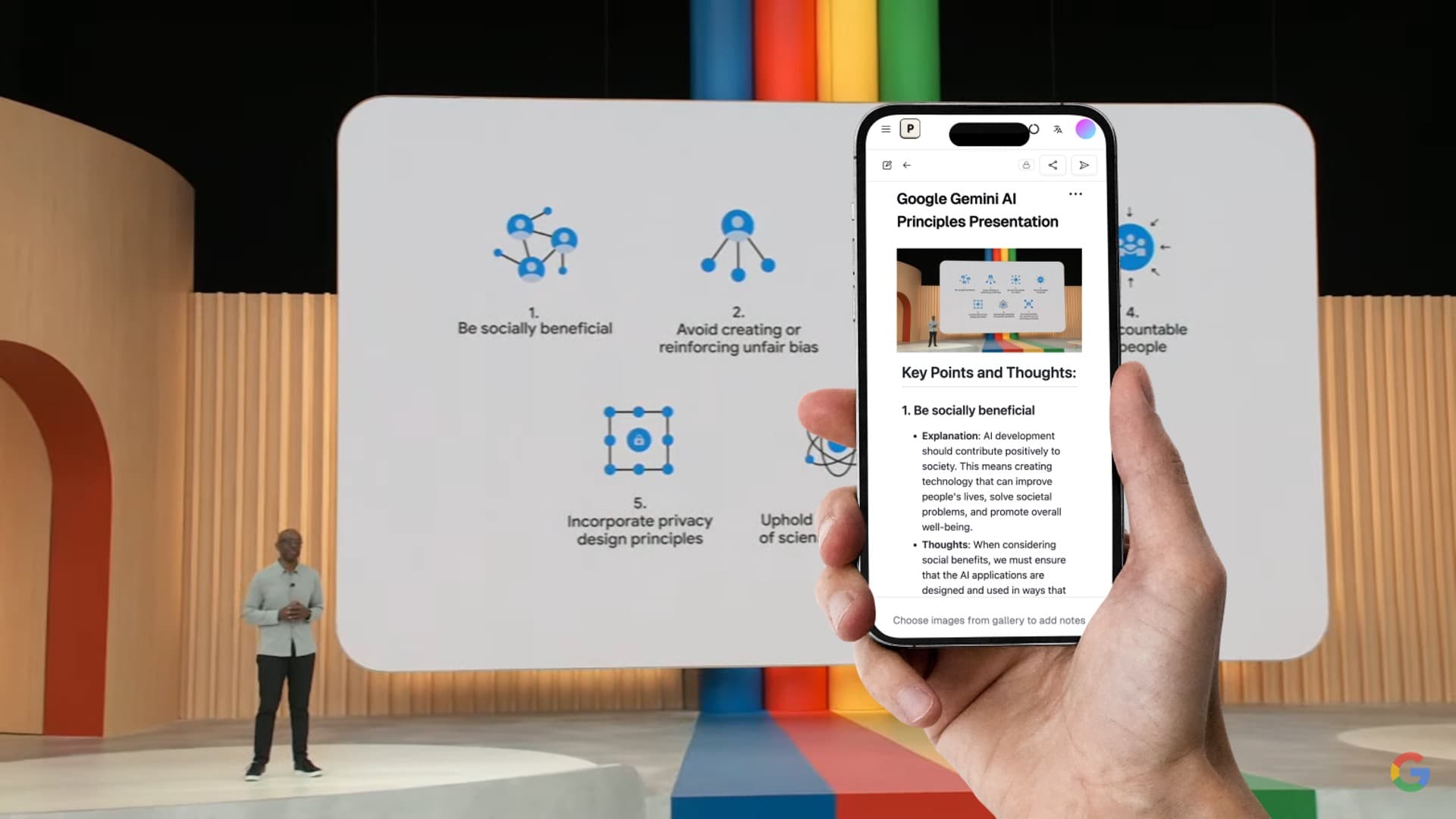
Pixno processes each slide individually using AI vision and language models. It reads text content, interprets visual elements, and produces notes that explain what the slide communicates — not just what words appear on it.
For example, a slide with a cell biology diagram produces notes like:
Cell Membrane Structure
- Phospholipid bilayer forms the primary barrier
- Hydrophilic heads face outward (toward water)
- Hydrophobic tails face inward (away from water)
- Integral proteins span the membrane for transport
- Peripheral proteins attach to surface for signaling
A plain OCR tool would just extract the labels: "phospholipid," "hydrophilic head," "hydrophobic tail." Pixno explains the relationships and function.
Step 3: Review and Add Context
The generated notes cover everything visible on the slides. What they miss is verbal context your professor provided during lecture. Spend 5-10 minutes scanning the notes and adding:
- Key points the professor emphasized ("This will be on the exam")
- Examples discussed in class but not on slides
- Connections between topics from different lectures
- Your own questions or areas of confusion
Step 4: Export to Your Study System
Send the notes where you actually study:
- Markdown — For Obsidian, Notion import, or any text editor
- Google Docs — For sharing with study groups
- Notion — Direct export to your Notion workspace
- MS Word — For printing annotated study sheets
Total time: 2-5 minutes for AI processing + 5-10 minutes for review = under 15 minutes for a complete lecture's notes.
Turn photos to notes and knowledge base
Pixno is your AI note taking assistant that turn photos, audio, docs into well structured text notes and create your personal knowledge base.
Get StartedMethod 2: Guided AI Conversion Using ChatGPT or Copilot
This method uses general-purpose AI chatbots to summarize slides. It requires more manual work than Pixno but gives you more control over the output format.
Step 1: Export Slides as PDF
Convert your PowerPoint or Google Slides file to PDF. This makes it easy to upload to any AI tool.
Step 2: Upload and Prompt the AI
Upload the PDF to ChatGPT (Plus) or Microsoft Copilot. Use a specific prompt to get structured notes:
Recommended prompt:
"Read these lecture slides and create comprehensive study notes. Use the following format: H2 headings for each major topic, bullet points for key concepts, bold text for important terms, and include a summary table at the end listing all key terms and their definitions."
Step 3: Iterate on the Output
General-purpose AI tools often need follow-up prompts to get the output right:
- "Expand on the section about [topic] — the notes are too brief"
- "Add the information from the diagrams on slides 12-15"
- "Create a comparison table for the three theories discussed"
- "List the formulas from the slides in a separate section"
Step 4: Copy and Format
Copy the output into your note-taking app. You'll likely need to:
- Fix formatting issues (bullet point indentation, table alignment)
- Add missing diagram descriptions (ChatGPT often skips visual content)
- Verify factual accuracy (AI sometimes paraphrases incorrectly)
- Restructure sections that don't follow lecture order
Total time: 20-30 minutes including prompting, iterating, and manual cleanup.
Limitations of This Method
| Issue | Impact |
|---|---|
| Diagrams and charts often ignored | Missing visual information from notes |
| Inconsistent output format | Requires manual reformatting |
| Message limits on free tiers | May run out of messages mid-deck |
| No batch processing | One conversation per slide deck |
| Context window limits | Long decks get truncated |
This method works for text-heavy slides but struggles with visually rich content like science, engineering, and math lectures where diagrams carry the core information.
Method 3: Manual Conversion with a Template (Most Thorough)
Manual conversion takes the most time but gives you the deepest understanding of the material. The act of reading each slide, deciding what matters, and rewriting it in your own words activates recall and comprehension in ways that copy-paste AI conversion doesn't.
Step 1: Set Up Your Note Template
Create a consistent structure before you start. This template works for most lecture types:
## [Lecture Topic] — [Date]

### Key Concepts
- Concept 1: [definition in your own words]
- Concept 2: [definition in your own words]

### Detailed Notes
#### [Subtopic from slides 1-10]
- [Key point]
- [Key point]

#### [Subtopic from slides 11-20]
- [Key point]
- [Key point]

### Diagrams & Visuals
- [Describe diagram from slide X: what it shows, key relationships]

### Questions
- [Anything you didn't understand]

### Summary Table
| Term | Definition | Slide # |
|------|-----------|---------|
| ... | ... | ... |
Step 2: Process Slides in Batches
Don't go slide by slide — that's inefficient. Instead:
- Scan all slides first (5 minutes) — get the overall structure
- Identify major sections — group related slides
- Write notes per section — capture the key points, skip repeated information
- Describe visuals — write what each diagram or chart shows and why it matters
- Add your own context — professor's verbal comments, connections to other lectures
Step 3: Create Summary Materials
After processing all slides, create:
- A one-page summary with only the most important points
- A terms table for quick reference
- A list of questions to resolve before the exam
Total time: 2-3 hours for a 50-slide deck.
When Manual Conversion Makes Sense
| Situation | Why Manual Works Better |
|---|---|
| Complex theoretical content | Writing forces deeper processing |
| Preparing for essay exams | You need to explain concepts in your own words |
| First time learning a topic | Active engagement aids retention |
| Small number of slides (under 20) | AI overhead isn't worth it for short decks |
Which Method Should You Use?
| Your Situation | Best Method | Why |
|---|---|---|
| 5+ courses, limited time | AI (Pixno) | Process all lectures quickly, review later |
| Need custom formatting | Guided AI (ChatGPT) | Control the output structure |
| Studying for essay exams | Manual | Deep understanding through rewriting |
| Slides with many diagrams | AI (Pixno) | Only Pixno interprets visual content |
| Text-heavy slides, few images | Guided AI or Manual | Visual processing less important |
| Exam is tomorrow | AI (Pixno) | Speed is critical |
| Weekly study routine | AI + Manual review | AI for base notes, manual annotation for retention |
The most effective approach for most students: use AI conversion (Method 1) to generate complete base notes in minutes, then spend 10-15 minutes manually reviewing and annotating them. You get the speed of AI with the retention benefits of active review.
Tips for Better Slide-to-Note Conversion
Regardless of which method you use, these practices improve the quality of your notes:
Before conversion:
- Download slides before lecture if possible — take notes on what the professor adds verbally
- Check if the professor provides speaker notes with the slides — these contain crucial context
During conversion:
- Process slides the same day as the lecture while verbal context is fresh
- Don't aim for completeness — focus on concepts you'll be tested on
- Group related slides rather than processing linearly
After conversion:
- Compare your notes against the syllabus learning objectives
- Flag areas where the notes are thin — revisit those slides or ask the professor
- Link notes across lectures — connect today's concepts to previous material
FAQ
Can I convert Google Slides to notes directly?
Not directly in most tools. Export your Google Slides as a PDF first, then upload to Pixno (opens in a new tab) or ChatGPT. The PDF preserves all formatting, diagrams, and text. In Pixno, the conversion takes under 5 minutes for a typical lecture deck.
How do I handle slides with diagrams and charts?
Use an AI tool with visual understanding. Pixno (opens in a new tab) interprets diagrams and charts, describing their content and meaning in the generated notes. General-purpose AI tools like ChatGPT often skip or misinterpret visual elements. For manual conversion, describe each diagram in your own words — what it shows, the key relationships, and why it matters.
Should I convert slides to notes before or after lecture?
Both — in different ways. Before lecture, skim the slides to identify topics and prepare questions. After lecture, convert slides to full notes while the professor's verbal context is still fresh. Same-day conversion produces the best notes because you can fill in gaps that don't appear on the slides.
How many slides can AI process at once?
Pixno (opens in a new tab) handles full lecture decks of 100+ slides in a single upload. ChatGPT has context window limits that can truncate long documents — you may need to split decks of 50+ slides into smaller chunks. Google NotebookLM handles long PDFs but doesn't interpret visual content.
Do AI-converted notes work for science and math courses?
Yes, but with caveats. Pixno (opens in a new tab) handles scientific diagrams, chemical structures, and mathematical notation well because it uses vision AI to interpret visual content. However, always verify formulas and technical details — AI occasionally introduces errors in specialized notation. For math-heavy courses, review the equations in generated notes against the original slides.
Related Reading
- How to Study From Lecture Slides and Speaker Notes — Build a practical review workflow from slide decks
- How to Turn PowerPoint Slides into Study Notes — Detailed PowerPoint-specific tutorial
- AI Notes Generator: How to Auto-Generate Study Notes — Generate notes from slides, images, and audio
- Free AI Note Generator Tools Compared — Best free options for students
- Effective Note-Taking Tips for Class — Practical note-taking methods
- Cornell Notes with AI — Combine Cornell method with AI tools
- Best AI Note Taking Apps in 2026 — Full comparison of AI note-taking tools